The ThinkPad T480 is famous for a feature many modern laptops lost: a dual-battery design (Lenovo “Power Bridge” style).
That’s great news —because it means you can restore worn-out runtime by replacing ageing batteries,
or upgrade runtime by moving to a higher-capacity external pack.
View all ThinkPad T480 battery options
|
Jump to: Which battery should I buy?
|
Jump to: Installation overview
1) Why T480 battery life drops over time
All lithium batteries wear out. Over hundreds of charge cycles, the pack’s usable capacity gradually shrinks.
On a ThinkPad T480, you may not notice it at first—until you suddenly go from “a workday” to “a couple of hours”.
Typical wear accelerators include:
- Heat: gaming/heavy workloads while charging, blocked vents, hot rooms.
- Always sitting at 100%: keeping the battery full for long periods increases stress.
- Deep discharges: frequent 0–5% runs can be rough on older packs.
- Age: even lightly used batteries degrade over years.
2) How the ThinkPad T480 dual-battery system works
Most T480 configurations use:
- One internal battery (inside the chassis)
- One removable external battery (hot-swappable style)
This design gives you two big advantages:
- Flexible replacement: you can replace the external pack in seconds, and the internal battery when needed.
- Upgrade path: you can increase runtime by choosing a higher-capacity external pack (e.g., 48Wh or 72Wh).
3) Common signs your T480 battery needs replacement
- Runtime collapses: it drops from hours to minutes compared to when the laptop was newer.
- Percentage jumps: battery % suddenly falls, sticks, or jumps upward after reboot.
- Unexpected shutdowns: the laptop powers off at 20–40% (bad calibration or weak cells).
- Charging feels “slow” or inconsistent: especially if the pack is old or heavily worn.
- One battery is doing all the work: internal or external shows very low full-charge capacity in diagnostics.
If your T480 still runs fine on AC power but dies quickly on battery, a replacement is often the most cost-effective “performance upgrade” you can do.
4) Choose the right replacement or upgrade battery
Here are common T480 battery options, including straightforward replacements and runtime upgrades.
(Use the product cards below to open each option.)
4.1 Battery options (replacement + upgrade)
| Battery | Type | Capacity | Best for | Link |
|---|---|---|---|---|
| 01AV421 | Internal | 24Wh | Replacing a worn internal battery; stabilising shutdowns and % jumps | View |
| 01AV423 (61) | External | 24Wh | Quick external replacement; lightest profile | View |
| 01AV427 (61) | External | 48Wh | Best balance: noticeable runtime upgrade without going “max size” | View |
| Lenovo 61 | External | 72Wh | Maximum runtime for travel and long unplugged work sessions | View |
4.2 What most T480 users should do (simple recommendations)
- If your runtime is terrible: replace both the internal and external batteries (restore the original experience).
- If the external battery is the main problem: replace external first (fastest fix).
- If you want a real upgrade: keep/replace internal 24Wh, and upgrade the external to 48Wh or 72Wh.
- If you travel or work unplugged a lot: 72Wh external is the “go long” choice.
- If you want a balanced everyday upgrade: 48Wh external is often the best value-to-runtime ratio.
ThinkPad T480 Batteries
4.3 Product cards (with images)

24Wh Lenovo 01AV421 (Internal)
Restore stability and baseline runtime by replacing the internal pack.
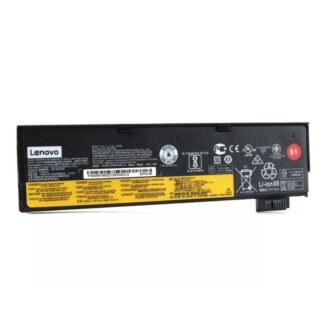
24Wh Lenovo 01AV423 (61) (External)
Quickest replacement. Keeps the laptop slim and light.
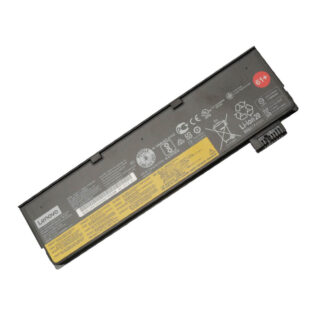
48Wh Lenovo 01AV427 (61) (External)
A strong, practical upgrade—more runtime without going max size.
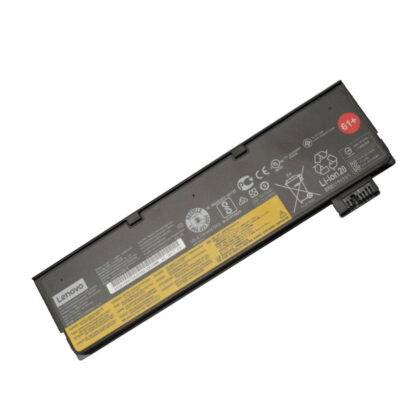
72Wh Lenovo 61 (External)
Maximum unplugged runtime—ideal for travel and long workdays.
5) How much extra runtime will you really get?
Battery runtime is mostly a simple relationship:
Runtime (hours) ≈ Battery energy (Wh) ÷ Average power draw (W).
If your T480 averages 6W during light work (docs, browsing, low brightness), then:
| Battery energy | Example average draw | Approx runtime | What it means |
|---|---|---|---|
| 24Wh | 6W | ~4 hours | Baseline pack (light use) |
| 48Wh | 6W | ~8 hours | A meaningful everyday upgrade |
| 72Wh | 6W | ~12 hours | Maximum travel/workday runtime |
Real-world runtime varies based on brightness, Wi-Fi signal, background apps, CPU load, and battery age.
Still, the Wh comparison is the most honest way to estimate the upgrade benefit: 72Wh is about 3× the energy of 24Wh.
6) Before you buy: confirm compatibility & diagnose properly
6.1 Check battery health (Windows + Lenovo Vantage)
- Lenovo Vantage: Look for battery details such as full charge capacity and battery health status.
- Windows battery report: Generates a simple report showing design capacity vs full charge capacity.
powercfg /batteryreport
If the “full charge capacity” is far below the design capacity, the pack is worn and replacement is the correct fix.
If capacity looks fine but the percentage is inaccurate, calibration can help (see below).
6.2 Decide if you’re restoring or upgrading
- Restore: replace the worn battery (internal, external, or both).
- Upgrade: choose a higher-capacity external battery (48Wh or 72Wh) to increase runtime.
7) Installation overview (external + internal)
If you are not comfortable opening electronics, ask a professional technician.
7.1 External battery replacement (fastest)
- Shut down Windows (don’t just sleep).
- Unplug the charger and all accessories.
- Release the external battery latches and remove the pack.
- Insert the new external battery until it clicks into place.
- Boot and confirm Windows/Lenovo Vantage detects the battery.
7.2 Internal battery replacement (more involved)
The internal battery sits inside the chassis. Many ThinkPads include a BIOS option to
disable the built-in battery before servicing (menu naming can vary).
Use that feature if available, then proceed with a careful replacement.
- Back up important work and shut down.
- Unplug AC power and peripherals.
- (Optional but recommended) In BIOS/UEFI: use “Disable built-in battery” for servicing if the option exists.
- Remove the bottom cover screws and carefully lift the cover.
- Disconnect the internal battery connector, remove screws holding the battery, and replace with the new pack.
- Reconnect the battery, reinstall the cover, then power on and verify detection.
If you’re restoring performance, replacing the internal 24Wh pack often helps with:
unexpected shutdowns, unstable percentage readings, and reduced baseline runtime.
8) After installation: calibration & best Lenovo Vantage settings
8.1 First charge after replacement
- Charge the laptop normally and let Windows settle for a few minutes after boot.
- Run a normal usage session and confirm the discharge rate feels consistent.
8.2 Battery calibration (when needed)
If the percentage is inaccurate (drops quickly, jumps, or shuts down early), a battery gauge reset/calibration can help.
Do this only if you actually have symptoms—calibration is not needed every month.
- Use Lenovo Vantage battery tools if available (menu names vary by version).
- Alternatively, perform a controlled discharge/charge cycle (avoid frequent deep discharges after calibration).
8.3 Best default settings for longer battery lifespan
- Enable a charge threshold (for example, cap at ~80%) if you stay plugged in often.
- Avoid constant 100% when the laptop sits on AC all day.
- Keep the laptop cool (heat speeds up wear).
9) Extra tips to stretch runtime (without buying anything)
9.1 Reduce power draw (the fastest wins)
- Screen brightness: the #1 battery killer for many users—drop it slightly.
- Browser discipline: fewer tabs + fewer heavy extensions reduces CPU spikes.
- Background apps: check Task Manager for unexpected CPU usage.
- Windows power mode: use “Balanced” for daily work; avoid “Best performance” on battery.
9.2 Keep the laptop efficient
- Update drivers when stable (Wi-Fi/graphics can affect power draw).
- Restart occasionally—long uptimes can accumulate background tasks.
- If your SSD is nearly full, free space can improve overall responsiveness (and reduce “thrash”).
FAQ
Does the ThinkPad T480 have two batteries?
Many T480 configurations use a dual-battery setup: an internal battery plus a removable external battery.
This is why the T480 is great for restoring and upgrading runtime.
Is upgrading from 24Wh to 48Wh or 72Wh worth it?
If you work unplugged, yes. Capacity (Wh) is directly tied to runtime. A 48Wh pack has about 2× the energy of 24Wh,
and 72Wh has about 3×—so the upgrade is usually very noticeable.
Should I replace internal, external, or both?
If the laptop dies quickly and you don’t know which pack is weak, replacing both restores the full “Power Bridge” experience.
If only the external pack is worn, replacing external is the fastest fix. If you want an upgrade, choose a higher-capacity external pack.
Why does my battery stop charging at around 80%?
If a charge threshold / conservation feature is enabled in Lenovo Vantage, the laptop may intentionally stop at a set level
to reduce battery wear. That behaviour is normal when the feature is turned on.
Will a bigger external battery change the shape of the laptop?
Higher-capacity external batteries can be physically larger on some ThinkPad models. The trade-off is more runtime.
If you prioritise portability, choose 24Wh; if you prioritise unplugged endurance, choose 48Wh or 72Wh.