If your Lenovo laptop suddenly can’t hold a charge, shuts down at “30%,” or only runs reliably on the charger, you’re likely dealing with battery wear. For several Lenovo performance and creator-class models—especially certain Legion S7 and ThinkBook 16p configurations—the replacement battery you’ll commonly see is the Lenovo L20L4PD3 / L20M4PD3 family.
This guide is written for DIY users who want to replace the battery safely, and professional repair shops who need a fast, repeatable compatibility + verification workflow with fewer comebacks.
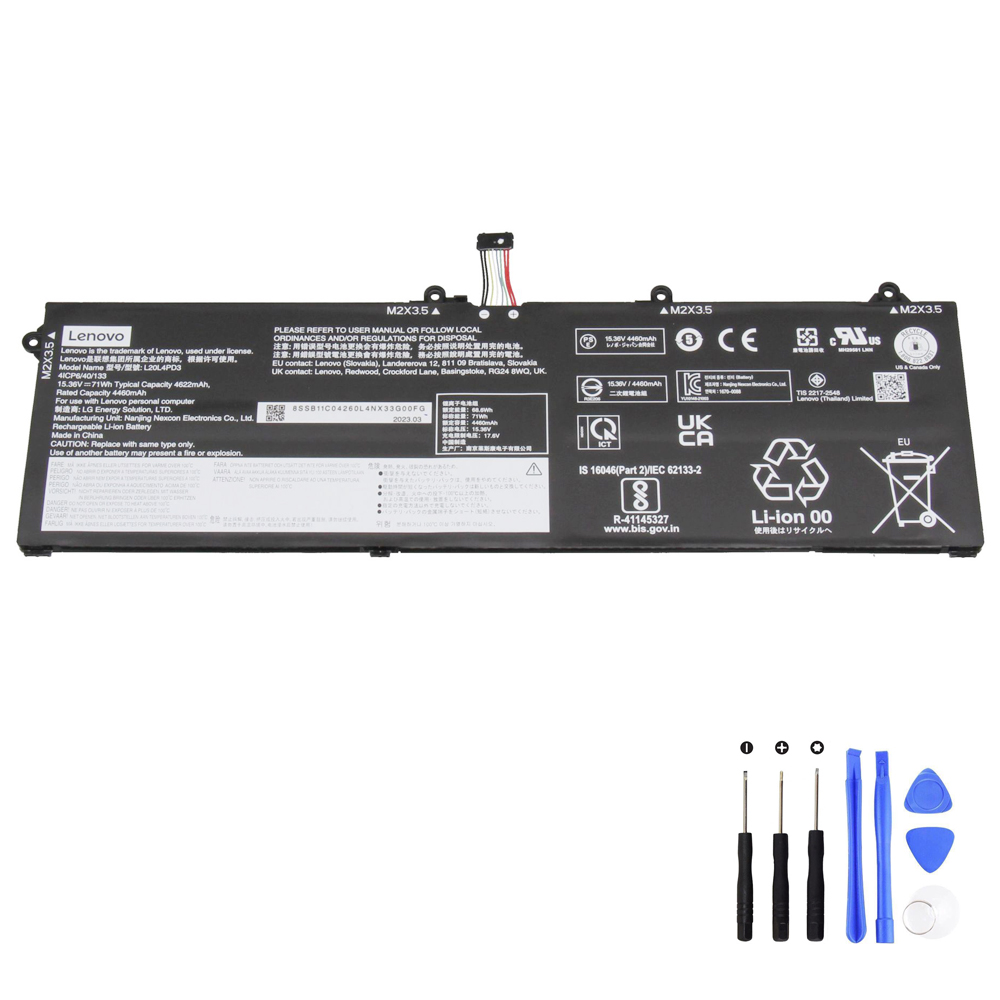
Recommended Replacement: Lenovo L20L4PD3 (71Wh)
- Capacity: 4622 mAh / 71 Wh
- Voltage: 15.36V (nominal)
- Cells: 4-cell
- Condition: Brand New
- Warranty: 12 Months / 30-Day Return
- Package: 1 × Battery for Lenovo
Pro tip: Lenovo batteries often have multiple equivalent part numbers (for example L20L4PD3 and L20M4PD3). The safest way to match is to confirm the part number printed on your original battery label.
1) What is the Lenovo L20L4PD3 battery?
The Lenovo L20L4PD3 is a high-capacity internal battery used in certain Lenovo performance and creator-class laptops. This replacement pack is rated at 71Wh with a nominal voltage of 15.36V and a 4-cell configuration. You may also see it listed as L20M4PD3, which is commonly treated as an equivalent family code.
Key specs (why they matter)
| Spec | Value | What it means in practice |
|---|---|---|
| Energy | 71Wh | The most honest indicator of potential runtime (higher Wh = more energy). |
| Voltage | 15.36V | A typical 4-cell (4S) lithium pack class for internal laptop batteries. |
| Capacity | 4622 mAh | mAh is less comparable across voltages; Wh is the better cross-battery metric. |
| Cells | 4 cells | Thin internal design; usually requires opening the bottom cover to replace. |
For many Legion S7 and ThinkBook 16p users, a healthy 71Wh battery makes a noticeable difference in daily usability—especially once the original pack ages and starts showing voltage sag or rapid capacity loss.
2) How to tell if your Lenovo battery is failing (real-world symptoms)
“Bad battery” doesn’t always mean the laptop won’t power on. Most failures show up as reliability problems: short runtime, percentage jumps, or shutdowns under load.
Strong signs you should replace the battery
- Runtime collapse: the laptop lasts far less than it used to under the same workload.
- Mid-percentage shutdowns: powers off at 20–40% (common when internal resistance increases).
- Rapid drops: battery falls quickly from high percentage to low percentage in minutes.
- Only stable on AC power: unplugging causes immediate power loss or severe throttling.
- Swelling signs: bulging bottom cover, trackpad click feels wrong, chassis doesn’t sit flat.
- Charging becomes abnormal: stuck at a low % across multiple charging attempts (after you rule out charger issues).
3) Measure battery health properly (Windows report + behavior under load)
3.1 Windows battery report (quick health snapshot)
On Windows, you can generate a battery report to compare Design Capacity vs Full Charge Capacity:
powercfg /batteryreportPractical interpretation used by many technicians:
- 80–100% of design capacity: generally healthy
- 60–80%: noticeable wear
- < 60%: replacement is usually the most effective fix
3.2 Load behavior matters (Legion / creator laptops reveal weakness faster)
High-performance laptops can expose battery weakness quickly. If the laptop shuts down or drops percentage rapidly during a brief CPU boost, game launch, or creator workload, internal resistance is likely high—replacement is often the correct solution.
4) Compatibility: part numbers and supported model series
The most reliable way to confirm compatibility is to match the part number printed on your original battery label. For this 71Wh battery, common compatible part numbers include (not all):
Compatible part numbers (partial list)
- Lenovo 4ICP6/40/132
- Lenovo 4ICP6/40/133
- Lenovo 5B11C04256
- Lenovo 5B11C04261
- Lenovo 5B11N51735
- Lenovo 5B11N51749
- Lenovo L20L4PD3
- Lenovo L20M4PD3
- Lenovo SB11C04260
- Lenovo SB11C04262
Compatible model series (partial list)
- Lenovo Legion S7-15ACH6 (82K8)
- Lenovo Legion S7-16ARHA7 (82UG)
- Lenovo Legion S7-16IAH7 (82TF)
- Lenovo ThinkBook 16p G2 ACH (20YM) Series
5) Not charging? Battery problem vs charger/port/motherboard issues
“Not charging” is one of the most common complaints—and it’s not always the battery. Use this practical order of operations to avoid replacing the wrong part.
Step 1: Rule out the charger/cable
- Test with a known-good charger of the correct wattage for your laptop class.
- If the laptop uses USB-C PD charging, test with a known-good PD charger and a laptop-rated cable.
- Check that the connector fits firmly and doesn’t disconnect with small movement.
Step 2: Inspect the charging port
- Loose feel, damaged center pin (barrel types), or intermittent contact can cause charging failures.
- Charging only at a certain angle often points to port wear or board-level issues.
Step 3: Consider thermal limits
On performance laptops, heat can trigger charging slowdown or pauses. If the laptop is very hot, cool it down and retry. This is not “battery failure” by itself—just a protective behavior.
Step 4: Identify battery refusal symptoms
If the laptop runs perfectly on AC power but the battery is stuck at a very low percentage across multiple known-good chargers, the battery may be internally failing or its protection circuit may be limiting charge due to detected faults.
6) DIY replacement workflow (safe, practical steps)
You will typically remove the bottom cover, disconnect the battery cable, swap the pack, and reassemble. If you’re not comfortable opening a laptop, a professional repair shop is recommended.
Tools commonly needed
- Small Phillips screwdriver (and/or Torx depending on your chassis screws)
- Plastic pry tool (for opening the bottom cover safely)
- Optional: ESD strap (recommended for repair shops)
Safe replacement sequence (general internal-battery workflow)
- Shut down completely (avoid sleep/hibernate when possible).
- Unplug the charger and all peripherals.
- Hold the power button for 10–15 seconds after unplugging (power drain).
- Remove bottom cover screws and lift the cover carefully.
- Disconnect the battery connector from the motherboard first (critical safety step).
- Remove battery mounting screws and lift the battery out gently (do not bend the pack).
- Install the new battery in the same position, secure screws, and route cables as originally placed.
- Reconnect the battery connector firmly and evenly.
- Reinstall the bottom cover and screws.
- Plug in the charger and boot the laptop.
71Wh Lenovo L20L4PD3 Battery (15.36V, 4-Cell)
7) After installation: verification, calibration, and common fixes
7.1 First charge expectations
- Charge normally to near full and let the system settle for 10–20 minutes.
- Battery time-remaining estimates may fluctuate at first; they often stabilize after a few cycles.
- Confirm the battery is detected and charging/discharging normally in Windows.
7.2 Do you need calibration?
Usually not. Calibration is mainly for inaccurate percentage readings (jumps, stuck values, early shutdown). Calibration improves gauge accuracy—it does not restore worn capacity.
7.3 If the new battery is “not charging”
- Power off, unplug, hold power button for 15 seconds.
- Open the bottom cover and re-seat the battery connector.
- Test with a known-good charger and power source.
- Check for any “charge limit” or battery health mode settings that might intentionally cap charging.
8) How to extend the new battery’s lifespan (especially on Legion/creator laptops)
Performance laptops stress batteries harder because they run hotter and draw more power under load. The best longevity gains come from: heat control and reducing time at full charge.
8.1 Control heat
- Charge on hard surfaces (avoid blankets/sofas while charging).
- Keep vents clean; dust raises internal temperature.
- Avoid sustained heavy load while charging if cooling is restricted.
8.2 Use charge limits when you’re mostly plugged in
- If your Lenovo system supports a battery conservation/threshold mode, consider an 80% cap for everyday desk use.
- Switch to 100% only when you truly need maximum unplugged runtime (travel days).
8.3 Practical runtime wins
- Reduce brightness slightly (often the biggest real-world improvement).
- Close unnecessary background apps and browser tabs.
- Use Balanced power mode when on battery if you don’t need maximum performance.
9) Repair shop checklist (faster diagnosis + fewer comebacks)
High-signal intake questions
- Does it shut down at a repeatable percentage (20–40%)?
- Is the issue short runtime, not charging, or percentage jumping?
- Was the charger changed recently (wrong wattage / damaged cable)?
- Any swelling symptoms or chassis deformation?
- Does it charge normally when powered off?
Fast verification workflow
- Label verification: photo the old battery label (L20L4PD3 / L20M4PD3 / 5B11… / SB11…).
- Health snapshot: Windows battery report (design vs full charge capacity) when available.
- Known-good charger test: confirm the charging chain before blaming the battery.
- Post-install test: verify stable charge/discharge and no shutdown under moderate load on battery.
FAQ
Is Lenovo L20L4PD3 the same as L20M4PD3?
They are commonly listed as the same compatibility family for this battery type. The safest method is to match your original battery label part number before ordering.
Why does my laptop shut down at 30%?
This often happens when battery internal resistance increases. Under load, voltage can sag and trigger a shutdown even though the gauge claims charge remains. Replacement is usually the most reliable fix if it repeats consistently.
Do I need to fully drain the new battery to calibrate it?
Not usually. Use the laptop normally. Only consider calibration if the percentage behaves abnormally (jumping, stuck, early shutdown).
Where can I buy the 71Wh L20L4PD3 replacement?
You can find it here: 71Wh Lenovo L20L4PD3 Battery