The Lenovo ThinkPad T470 is still widely used for business, school, and repair-shop refurb projects.
One of the best things about the T470 is that it supports a dual-battery design (internal + removable external),
which means you can:
- Restore original battery life by replacing worn batteries
- Upgrade runtime by choosing a higher-capacity external battery (48Wh or 72Wh)
Important note: The ThinkPad T470 uses the same battery options as the ThinkPad T480,
so the battery models below apply to both systems.
View all compatible batteries
|
Jump to: Which battery should I buy?
|
Jump to: Replacement overview
1) How the ThinkPad T470 dual-battery system works
Most ThinkPad T470 configurations use a two-battery setup:
- Internal battery (inside the chassis): keeps the system running during external swaps
- External battery (removable pack): can be replaced quickly without opening the laptop
This design is a huge advantage for both normal users and repair shops:
you can replace the external battery in seconds, and you can extend runtime by choosing a larger-capacity external pack.
2) Why your T470 battery life drops over time
Lithium-ion batteries are consumable parts. Over years of use, the battery’s
full charge capacity gradually declines. Eventually, a laptop that once lasted a workday
can drop to a couple of hours—or less.
Common accelerators of battery wear:
- Heat: charging while under heavy load, blocked airflow, high ambient temperature
- Staying at 100% for long periods: constant “full” storage increases stress
- Deep discharges: frequently running down to very low %
- Age: even lightly used packs degrade over time
3) Signs it’s time to replace (or upgrade) the battery
- Short runtime: battery drains much faster than it used to
- Battery % jumps: sudden drops, “stuck” percentage, or inaccurate time remaining
- Unexpected shutdowns: powers off at 20–40% (weak cells or gauge issues)
- Only one battery works: internal or external shows very low capacity compared to the other
- Swelling: stop using immediately and replace safely (swollen batteries can damage the chassis)
If your ThinkPad works normally on AC power but runtime is poor when unplugged, battery replacement or upgrade is usually
the fastest, most cost-effective fix.
4) Battery options for ThinkPad T470 (same set as T480)
The ThinkPad T470 uses the same internal/external battery options as the T480. Below are the most common choices:
| Battery model | Position | Capacity | Best for | Link |
|---|---|---|---|---|
| 01AV421 | Internal | 24Wh | Restoring baseline stability and battery switching behavior | View |
| 01AV423 (61) | External | 24Wh | Slim/light profile; quick external replacement | View |
| 01AV427 (61) | External | 48Wh | Best balance: noticeable runtime upgrade without max size | View |
| Lenovo 61 | External | 72Wh | Maximum runtime for travel and long unplugged sessions | View |
Which one should you buy?
- Restore the original experience: Replace both internal 24Wh + external (24Wh/48Wh/72Wh depending on your preference).
- Fastest fix for most users: Replace the external battery first (it’s the easiest part to swap).
- Best everyday upgrade: 48Wh external (good runtime without the largest size/weight).
- Maximum endurance: 72Wh external (best for travel, field work, long days away from outlets).
ThinkPad T470 / T480 compatible battery collection
Product cards (with images)

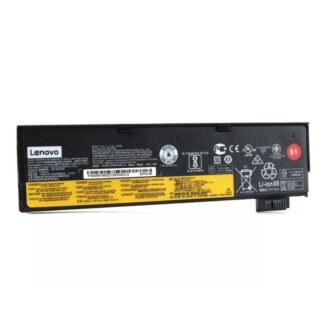
24Wh Lenovo 01AV421 (Internal)
Restores baseline battery health and stable switching behavior.
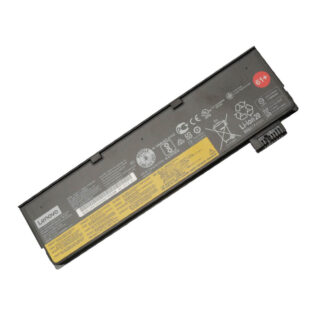
24Wh Lenovo 01AV423 (61) (External)
Slim and light—quick external replacement for everyday use.
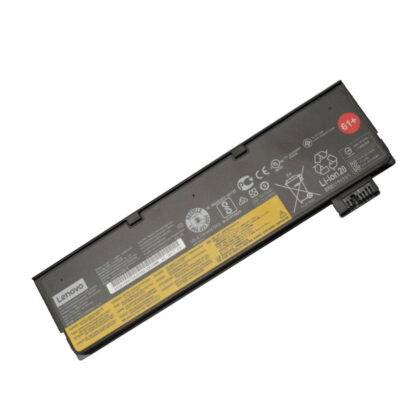
48Wh Lenovo 01AV427 (61) (External)
Best balance: a real runtime upgrade without the largest pack.
72Wh Lenovo 61 (External)
Maximum unplugged runtime—ideal for travel and long workdays.
5) How much extra runtime can you expect?
A practical way to estimate runtime is:
Runtime (hours) ≈ Battery energy (Wh) ÷ Average power draw (W).
Light workloads (documents, browsing, moderate brightness) often average 6–8W.
Using 7W as a simple example:
| External battery | Energy (Wh) | Example draw | Approx runtime | What to expect |
|---|---|---|---|---|
| External 24Wh | 24Wh | 7W | ~3.4 hours | Slim profile, basic endurance |
| External 48Wh | 48Wh | 7W | ~6.8 hours | Strong real-world upgrade |
| External 72Wh | 72Wh | 7W | ~10.3 hours | Maximum travel endurance |
Actual results depend on brightness, Wi-Fi signal strength, background apps, and battery age.
But the key point is simple: Wh capacity scales your runtime. If your old battery has degraded to half capacity,
replacing it can feel like a “new laptop” again.
6) Quick diagnosis: battery health check before ordering
6.1 Use Windows Battery Report (fast and reliable)
On Windows, you can generate a battery health report:
powercfg /batteryreport
Compare Design Capacity vs Full Charge Capacity. If full charge capacity is far below design capacity,
the battery is worn and replacement is the correct fix.
6.2 Identify whether the internal or external battery is the weak link
- If the laptop dies quickly with the external battery removed: internal battery may be weak.
- If runtime collapses only when running on the external pack: external battery may be weak.
- If both are old: replacing both restores the full dual-battery advantage.
7) Replacement overview (external + internal)
Always power off completely and unplug the charger before servicing.
7.1 External battery replacement (quickest)
- Shut down the laptop (not sleep/hibernate if possible).
- Unplug AC power and accessories.
- Release the battery latches and remove the external pack.
- Insert the new external battery until it clicks and locks.
- Boot and confirm the battery is detected and charging normally.
7.2 Internal battery replacement (requires opening the chassis)
The internal battery is mounted inside the base. Many ThinkPads provide a BIOS option to
disable the built-in battery before servicing. Use that feature if available.
- Back up important data and shut down.
- Unplug the charger and peripherals.
- (Recommended) Use “Disable built-in battery” in BIOS/UEFI if the option exists.
- Remove the bottom cover screws and lift the cover carefully.
- Disconnect the battery connector, remove the battery screws, install the new pack.
- Reconnect, reassemble, then verify charging and detection in Windows.
8) After replacement: calibration + best settings
8.1 First-day behavior
- Charge normally and allow the system to settle after boot.
- Do a normal work session and confirm discharge rate looks stable.
8.2 Calibration (only if you have symptoms)
If the battery percentage is inaccurate (jumps, shuts down early), a gauge reset/calibration can help.
Calibration improves accuracy—it does not restore worn capacity.
8.3 Settings that extend battery lifespan
- Use a charge limit/threshold (for example ~80%) if the laptop stays plugged in often.
- Avoid heat while charging (don’t block vents; avoid heavy load on soft surfaces).
- Balanced power mode is usually the best default for daily work.
- If storing the laptop long-term, store around 50–60% when possible.
9) Repair shop checklist
Intake checks (fast, high-signal)
- Verify whether the customer complaint is capacity loss or gauge inaccuracy.
- Check Windows battery report (design vs full charge capacity).
- Test internal-only and external-only behavior to isolate the weak pack.
- Inspect for swelling and physical damage before powering the device for extended time.
Recommended “restore vs upgrade” sales logic
- Restore: replace the worn internal 24Wh and/or external battery (match the customer’s original capacity preference).
- Upgrade: keep/replace internal 24Wh, install 48Wh (best balance) or 72Wh (max endurance) external.
FAQ
Is the ThinkPad T470 battery the same as the T480 battery?
Yes—your T470 uses the same battery options as the T480 for the configurations listed in this guide
(internal 24Wh + external 24Wh/48Wh/72Wh options).
Should I replace the internal battery too?
If the internal pack is worn, replacing it improves stability (shutdown behavior and switching) and restores baseline capacity.
If your external battery is the main issue and the internal still has healthy capacity, you can start with external first.
Does the 72Wh battery make the laptop bigger?
Higher-capacity external batteries can extend beyond the chassis on some ThinkPads.
The trade-off is simple: more size/weight for significantly longer runtime.
My battery percentage jumps—should I replace it?
If capacity is low (full charge capacity is far below design), replace the battery.
If capacity is still reasonable but readings are inaccurate, calibration may help.