The Dell Inspiron 14 (5410) is a popular everyday laptop, but “power problems” are one of the most common reasons
customers and repair shops see it on the bench: not charging, slow charging, charger not recognized,
sudden shutdowns, or a battery that no longer lasts.
This guide is written for regular users and professional repair shops.
It explains how to pick the correct USB-C power adapter, how to diagnose charging faults step-by-step,
and how to choose the correct replacement battery (41Wh / 54Wh / 64Wh).
Important compatibility note: “Inspiron 14 (5410)” appears in multiple configurations and regions.
Many 5410 models can charge via USB-C Power Delivery, but you should confirm your laptop supports USB-C charging
before buying a USB-C adapter (see How to confirm USB-C charging).
1) Most common Inspiron 14 (5410) power problems
- Won’t charge at all: battery percentage stays the same (or drops) even when plugged in.
- Slow charging: charges very slowly, especially while the laptop is in use.
- Adapter not recognized: BIOS/Windows warns the charger wattage is unknown or insufficient.
- Charges only in sleep/off: charges when shut down, but not while running heavy tasks.
- Random shutdowns on battery: laptop powers off at 20–40% (worn battery or inaccurate gauge).
- Short runtime: a “2–3 hour” laptop becomes “30–60 minutes”.
- USB-C port sensitivity: charging works only at certain angles or with certain cables.
2) Confirm your Inspiron 14 (5410) supports USB-C charging
Before selecting a USB-C adapter, verify that your specific Inspiron 14 (5410) can accept power over USB-C.
Here are practical ways to confirm:
-
Check the USB-C port markings: Look for icons near the USB-C port (such as a lightning symbol or “PD” indication).
Markings vary by model and region. -
Check your original charger type: If your original adapter is USB-C, your system supports USB-C charging.
If it is a barrel connector, you may need a barrel-type adapter instead. -
Check BIOS/UEFI adapter information:
On many Dell laptops, the BIOS shows the adapter wattage and status (recognized/not recognized). - Test with a known-good USB-C PD laptop charger: A phone charger may not be sufficient; use a laptop-grade PD charger.
A “USB-C plug” alone does not guarantee laptop charging.
3) Which charger should you use? (65W vs 90W)
For USB-C charging, the key parameter is wattage (power = volts × amps).
A higher-wattage charger does not force extra power into the laptop—your Dell will draw only what it needs.
But too low a wattage can cause slow charging or “not charging under load.”
3.1 When 65W is the right choice
- Typical office use (web, email, documents)
- Standard CPU configurations without sustained heavy load
- You want a compact everyday charger
3.2 When 90W is the better choice
- Heavy multitasking, long video calls, or sustained CPU boost
- Charging while using external displays/docks (higher system draw)
- You want faster recovery charging and fewer “slow charge” warnings
3.3 Charger product options (with images)
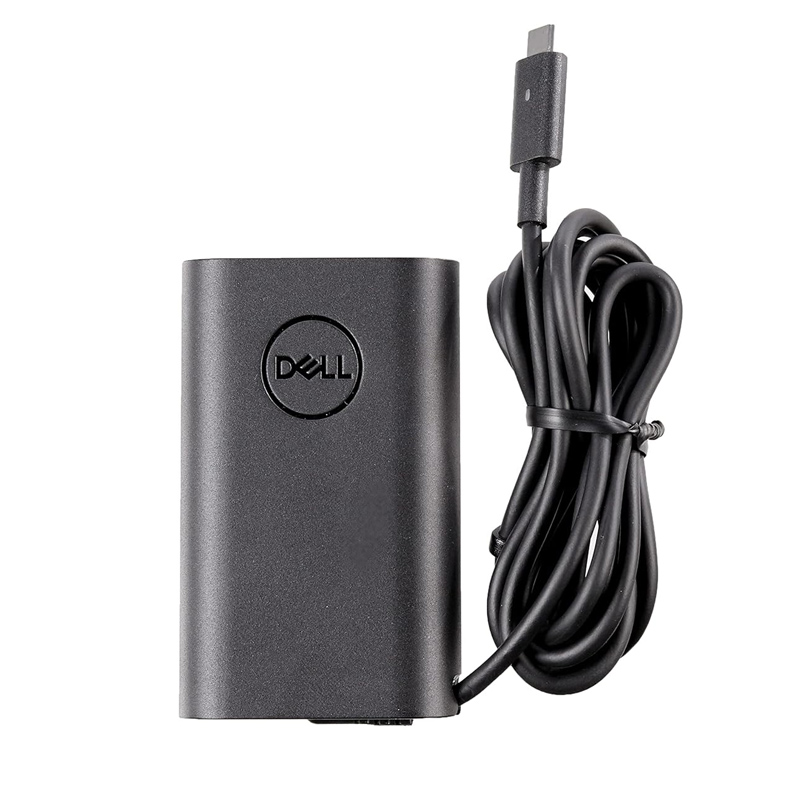
65W Dell USB-C Charger (20V ⎓ 3.25A)
A reliable everyday option for standard workloads and daily charging.
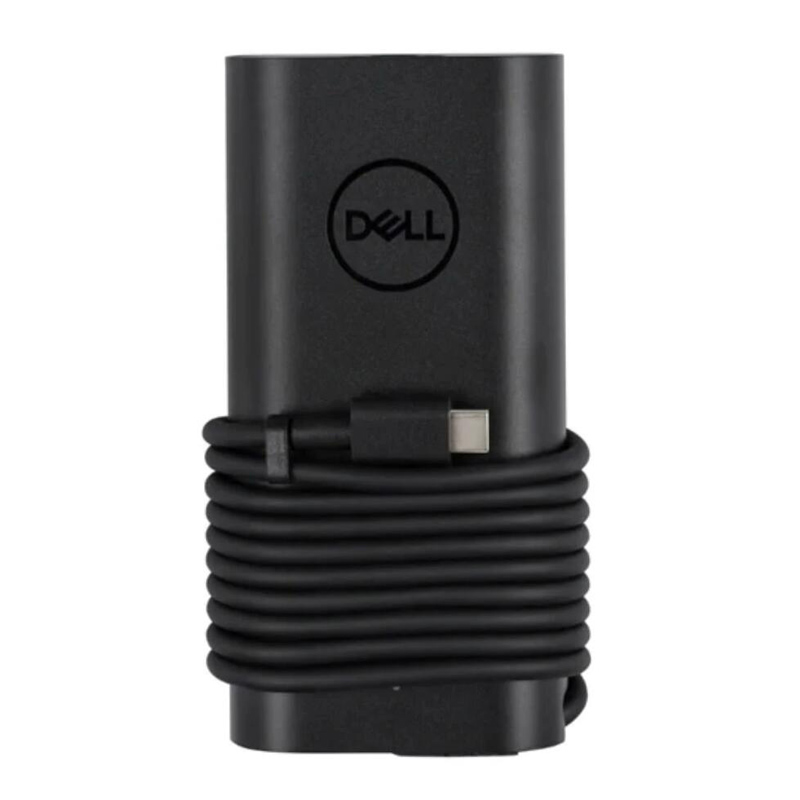
90W Dell USB-C Charger (20V ⎓ 4.5A)
Recommended if you want more headroom, faster charging, or fewer slow-charge warnings under load.
Use a quality USB-C cable rated for laptop power (many “phone cables” are not designed for high wattage).
4) Troubleshooting “Not charging / Slow charging / Adapter not recognized”
Use this order of operations to avoid wasted parts and misdiagnosis. It works for both end users and repair shops.
Step 1: Basic reset (fastest fixes)
- Power off the laptop completely.
- Unplug the charger.
- If your model allows, hold the power button for 15–20 seconds (power drain reset).
- Plug the charger back in and boot.
Step 2: Eliminate the cable/charger as the variable
- Try a different USB-C cable (laptop-rated).
- Try a different USB-C PD charger (65W+ recommended for laptops).
- If you have both options available, test 65W vs 90W to see if the issue is “insufficient power under load.”
Step 3: Inspect the USB-C port (common real-world failure)
- Look for debris, damage, looseness, or “charging only at a certain angle.”
- If the port feels loose or the connection is intermittent, the port or board-level components may need repair.
Step 4: Check BIOS adapter status (high signal diagnostic)
Many Dell systems show adapter information in BIOS (recognized wattage / unknown).
If BIOS does not recognize the adapter, Windows-level troubleshooting won’t fully fix it.
Step 5: Update BIOS and power-related drivers (stability fixes)
- BIOS updates can improve USB-C PD compatibility and charging behavior.
- Chipset and USB controller drivers can affect charging negotiation and stability.
Step 6: Identify “slow charging” root cause
“Slow charging” is often normal if the laptop is drawing high power while plugged in.
Examples:
- High brightness + video calls + many browser tabs
- Dock + external monitor + USB devices
- Background updates or heavy CPU usage
In these scenarios, upgrading from 65W to 90W can provide the headroom needed to charge normally while working.
5) Battery symptoms: when to replace vs when to calibrate
5.1 Replace the battery if you see these signs
- Full-charge capacity has significantly dropped compared to the original
- Runtime is far below expectations (e.g., 30–60 minutes for light work)
- Sudden shutdowns at moderate percentages (20–40%)
- Battery is physically swollen (stop using immediately and replace safely)
5.2 Calibrate (or reset battery gauge) if the capacity seems OK but % is inaccurate
- Battery percentage jumps up/down suddenly
- System reports odd remaining time estimates
- Battery health looks reasonable, but the indicator is unreliable
Calibration can improve the accuracy of the battery gauge, but it cannot restore lost chemical capacity.
If the battery is worn, replacement is the correct fix.
6) Choose the correct replacement battery (41Wh / 54Wh / 64Wh)
Inspiron 14 (5410) may ship with different battery capacities depending on configuration.
The safest approach is to match your current battery’s part number/capacity.
Below are common compatible replacement options:
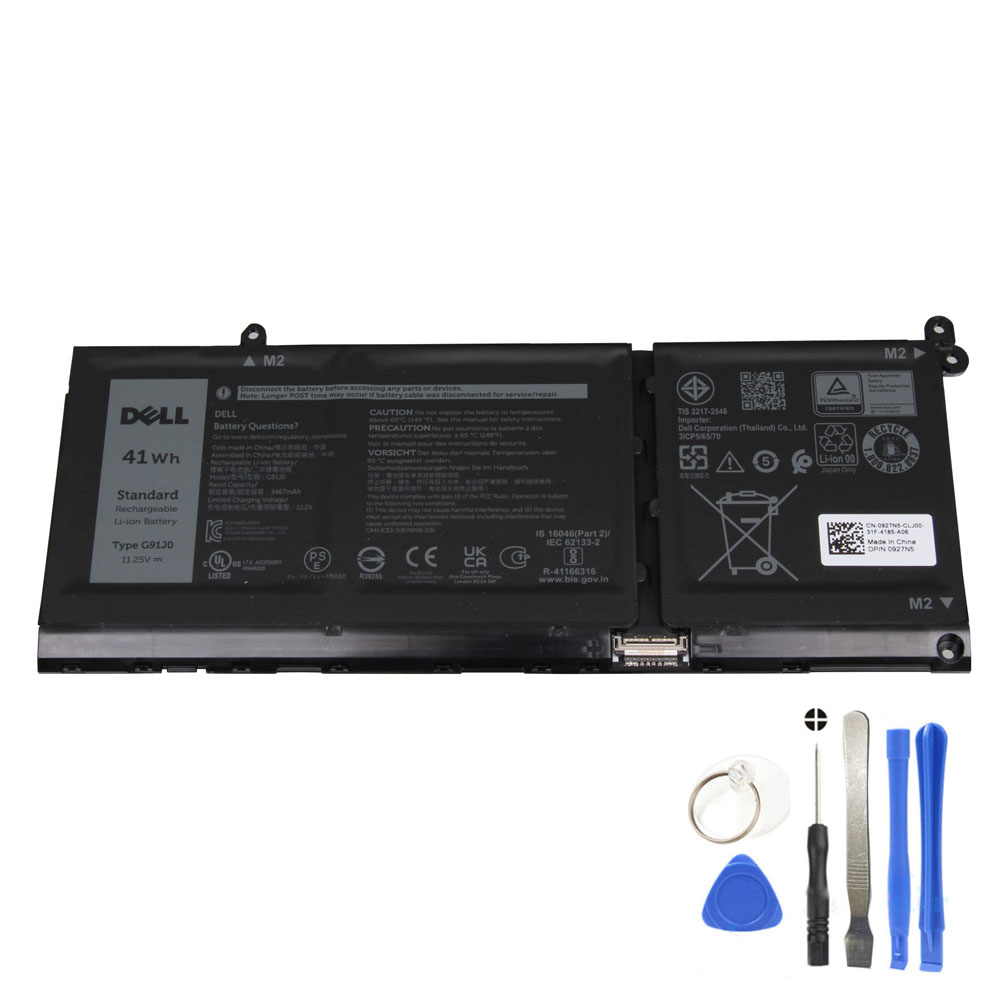
41Wh Dell G91J0 Battery
A solid replacement option for systems originally shipped with a 41Wh pack.
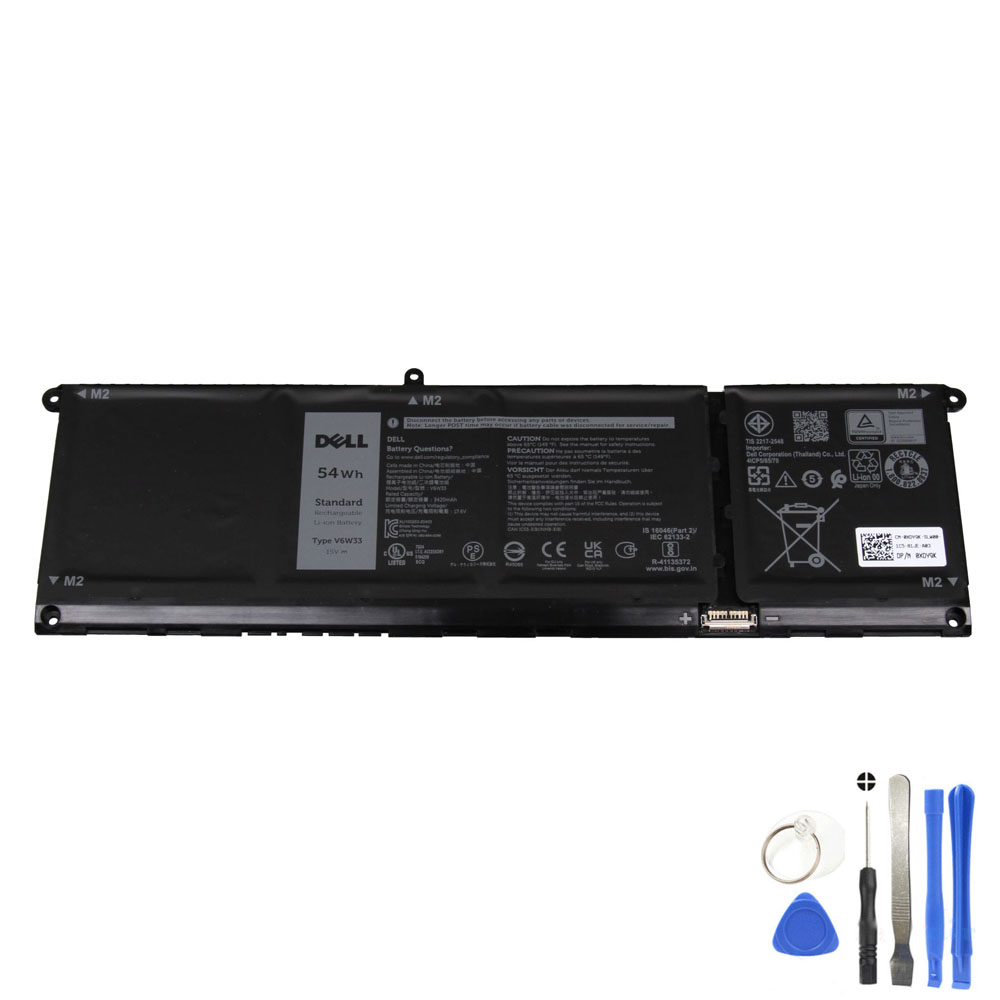
54Wh Dell V6W33 Battery
Higher capacity than 41Wh in some configurations—good for longer runtime if your model supports it.
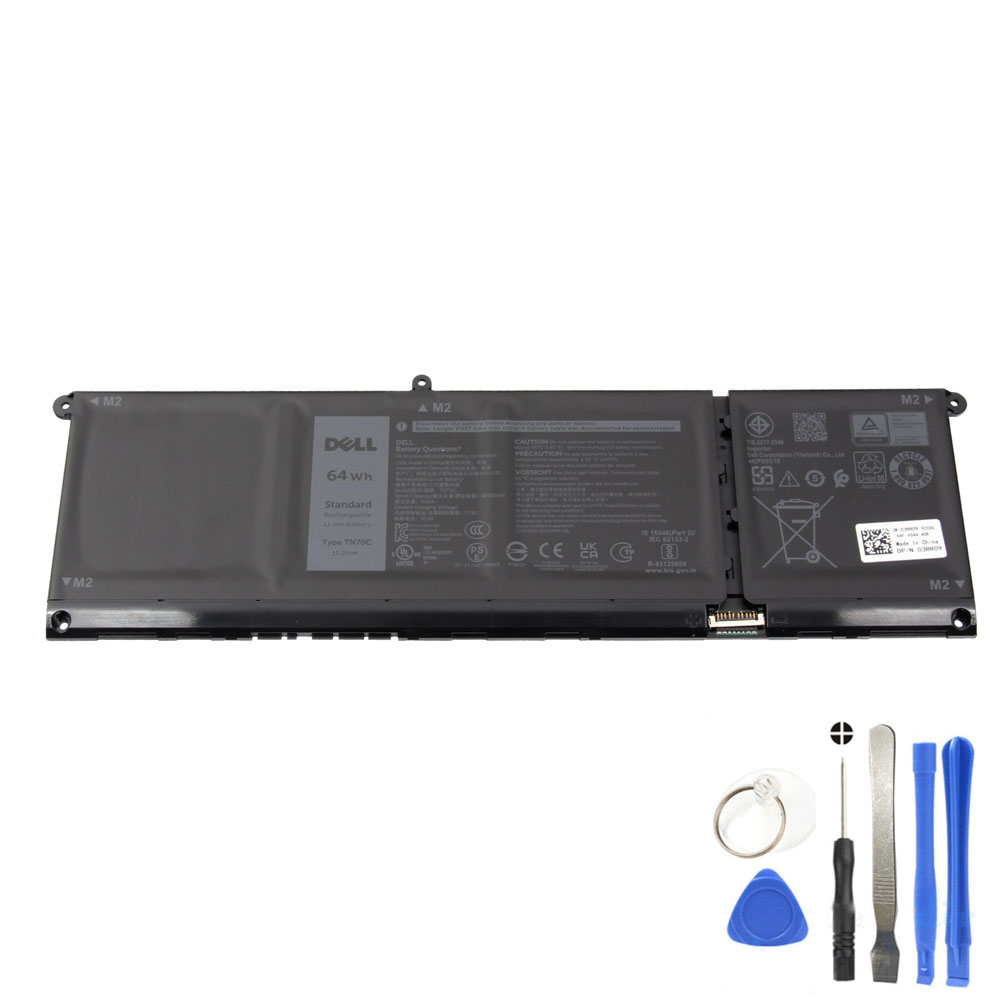
64Wh Dell TN70C Battery
The highest capacity option listed here—ideal when maximum runtime is the priority (model compatibility required).
6.1 How to confirm the correct battery (recommended method)
- Check the battery label (part number and Wh rating).
- Check your Dell Service Tag info (if available) and compare battery specs.
- For repair shops: validate the connector and screw layout match the original pack.
Swollen batteries can damage the chassis, trackpad, and internal components.
7) After replacement: best settings to protect battery life
A new battery performs best when you protect it from the two biggest wear accelerators:
heat and staying at 100% for long periods.
- Keep the laptop cool: avoid charging under heavy load on soft surfaces.
- Use a sensible performance profile: “Balanced” is usually the best default for daily use.
- Don’t chase 100% all the time: if you’re always on AC power, consider a charge limit feature if available on your system tools.
- Calibrate only when needed: if the percentage becomes inaccurate, then do a controlled cycle or use available diagnostic tools.
8) Repair shop checklist: fast diagnostics & part verification
8.1 Charger / USB-C PD intake test
- Inspect USB-C port physical condition (wiggle test, debris check).
- Test with known-good 90W USB-C PD adapter + known-good cable.
- Check BIOS adapter recognition (wattage recognized vs unknown).
- Verify charging behavior under load (CPU stress + brightness up).
8.2 Battery intake test
- Compare design capacity vs full-charge capacity (health estimate).
- Watch for abrupt voltage drop at mid-percentage (weak cells).
- Confirm pack part number and Wh rating before ordering replacement.
8.3 Recommended “power pairing” (simple best practice)
- If the customer frequently works plugged in while doing heavy tasks: recommend a 90W USB-C charger.
- If the customer complains about short runtime: recommend matching the original battery capacity, or upgrading if compatible.
FAQ
Can I use a phone USB-C charger for Dell Inspiron 14 (5410)?
Usually not reliably. Many phone chargers don’t provide enough wattage or the correct USB-C PD profiles.
For laptops, a 65W+ USB-C PD charger is typically the practical minimum.
Is 90W safe if my laptop originally used 65W?
Yes. The laptop controls how much power it draws. A higher-wattage charger simply provides more available headroom,
which can reduce slow-charging behavior during heavy use.
Why does my Dell say “charger not recognized”?
This usually points to a USB-C negotiation issue (charger/cable compatibility), port issues, or a system-level detection problem.
Start by swapping the cable and testing with a known-good 65W/90W PD charger, then check BIOS recognition.
Which battery capacity should I choose: 41Wh, 54Wh, or 64Wh?
Match the original battery part number/capacity whenever possible. If your configuration supports a higher-capacity pack,
upgrading can extend runtime—but compatibility must be confirmed (fitment, connector, screw layout).
My battery percentage jumps or shuts down early—should I replace it?
If the battery is worn (full-charge capacity is much lower than design capacity), replace it.
If the capacity looks reasonable but the indicator is inaccurate, calibration may help.