If your older Asus laptop suddenly can’t hold a charge, shuts down at “30%,” or only works when plugged in,
you’re not alone. The Asus A32-K55 battery family is one of the most widely used replacement batteries
across many Asus A / F / K / P / R / X series laptops—so it’s also one of the most common “DIY battery swap” jobs.
This technical guide is written for:
DIY users who want to replace their own battery safely, and
professional repair shops who need a fast, repeatable way to diagnose and restore battery runtime.
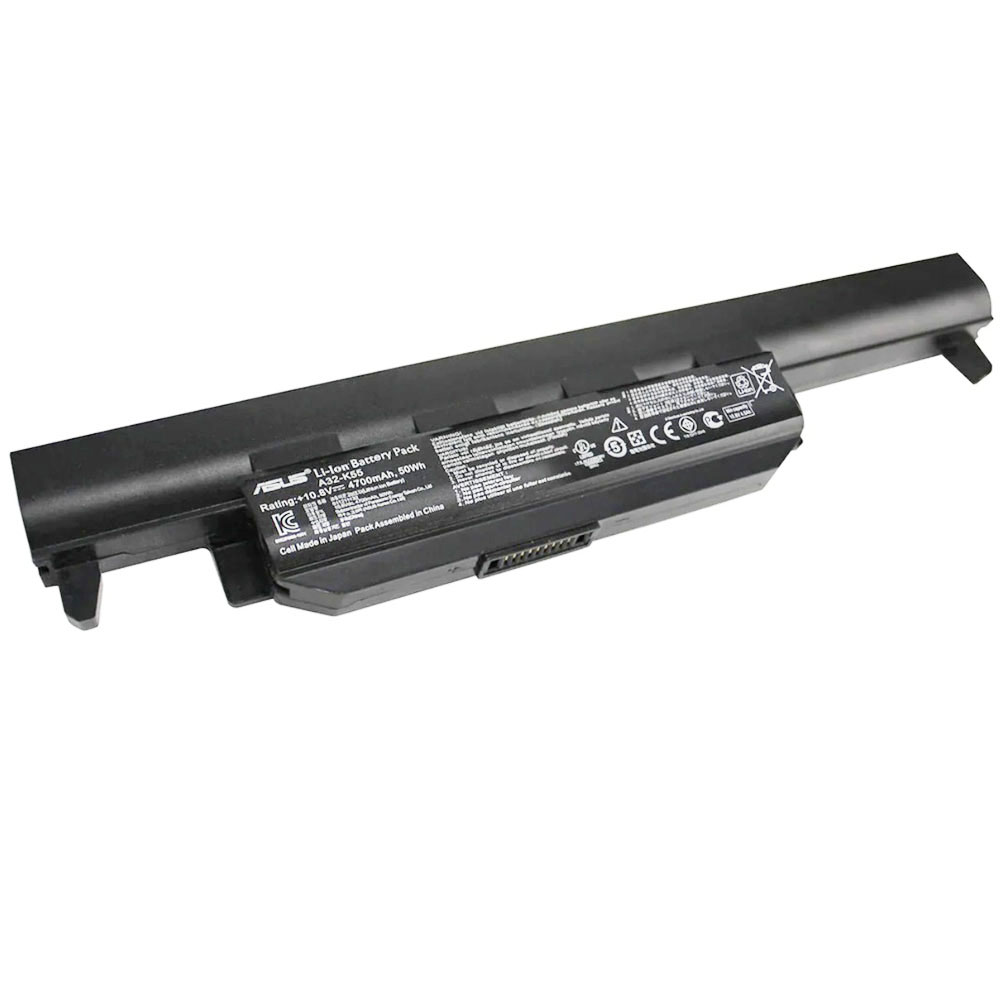
Recommended Replacement: 50Wh Asus A32-K55 Battery
- Capacity: 4,700 mAh / 50 Wh
- Voltage: 10.8V (nominal)
- Cells: 6-cell
- Condition: Brand New
- Package: 1 × Asus replacement battery
Tip: The A32-K55 family often appears under multiple compatible part numbers (A32-K55 / A33-K55 / A41-K55 / A42-K55).
Always match using your old battery label or laptop model before ordering.
1) What is the Asus A32-K55 battery family?
“A32-K55” is a widely used Asus battery model family found in many Asus laptops from the era when removable batteries were common.
The “family” includes multiple equivalent part numbers such as A32-K55, A33-K55,
A41-K55, and A42-K55. In real-world repair work, these labels often indicate the same
physical battery form factor and electrical profile for compatible laptop lines.
1.1 Key technical specs (this replacement pack)
| Capacity | 4,700 mAh / 50 Wh |
|---|---|
| Voltage | 10.8V (nominal) |
| Cell count | 6 cells |
| Color | Black |
| Package | 1 × Battery for Asus |
1.2 Why this battery matters for DIY users
Many laptops that use the A32-K55 family were designed with external, latch-release batteries.
That makes replacement far easier than modern “sealed battery” designs. For DIY users, it’s often a 1–2 minute job.
For repair shops, it’s a high-ROI repair that can dramatically improve customer experience.
2) How to tell if your Asus battery is bad (fast diagnosis)
A “bad battery” doesn’t always mean “0% and dead.” Most battery failures show up as reliability problems:
unpredictable drain, shutdowns, or very short runtime even when Windows claims a high percentage.
2.1 Strong warning signs (usually replace the battery)
- Runtime collapses: the laptop lasts minutes to an hour when it used to last several hours.
- Sudden shutdowns: it powers off unexpectedly at 10–40% remaining charge.
- Percentage jumps: battery % drops quickly or jumps up/down after reboot.
- Only works on charger: the laptop instantly dies when you unplug.
- Physical swelling or deformation: stop using immediately and replace safely.
- Battery won’t charge past a very low percent: even after hours on the charger (and you’ve ruled out charger issues).
2.2 Common “false alarms” (not always a bad battery)
- Battery drains faster after Windows updates: background tasks can raise power draw temporarily.
- Very high brightness: older laptops can lose 20–40% runtime simply due to brightness habits.
- Heavy workloads: streaming, video calls, and many browser tabs can double the power draw.
- Old charger problems: unstable charging can look like battery failure.
If a battery is swollen or damaged, replace it safely.
3) Measure battery health properly (Windows tools + practical thresholds)
If you want a clear answer (especially for repair shops), use measurement—not guesswork.
Windows includes a built-in tool that creates a battery report showing how much capacity remains.
3.1 Generate a Windows Battery Report
- Open Command Prompt (Administrator is recommended).
- Run the command below:
powercfg /batteryreport
Windows will generate an HTML report file. Open it and look for:
Design Capacity vs Full Charge Capacity.
3.2 Practical interpretation (DIY-friendly)
- 80–100% of design capacity: generally healthy; focus on power settings and usage habits.
- 60–80%: noticeable wear; many users start feeling “short battery life.”
- Below 60%: replacement usually gives the biggest improvement per pound/dollar.
3.3 Why “100%” can be misleading
A worn battery can still show 100%, but 100% is a percentage of its current maximum—not what it held when new.
That’s why a battery can appear “fully charged” and still drain quickly.
4) Compatibility: part numbers, voltage, watt-hours, and laptop series
With older Asus models, correct matching usually comes down to:
(1) the battery part number family,
(2) voltage class, and
(3) physical fit/latch style.
The safest method is to match your old battery label first.
4.1 Compatible part numbers (as provided)
This A32-K55 replacement is compatible with these part numbers (not all):
- Asus 0B110-00050000
- Asus 0B110-00050400
- Asus 0B110-00050500
- Asus 0B110-00050600
- Asus 0B110-00050700
- Asus 0B110-00050800
- Asus 0B110-00050800M
- Asus 0B110-00050900
- Asus 0B110-00051000
- Asus 0B110-00051100
- Asus 0B110-00051100M
- Asus 90-N881B2000Y
- Asus A32-K55
- Asus A33-K55
- Asus A41-K55
- Asus A42-K55
- Asus B110-00051100M
4.2 Compatible laptop model series (as provided, partial list)
Compatible model series include (partial list):
A Series
- Asus A45VD
- Asus A45VM
- Asus A55A
- Asus A55DR
- Asus A55N
- Asus A55VD
- Asus A55VJ
- Asus A75A
- Asus A75DE
- Asus A75VD
- Asus A75VJ
- Asus A75VM
F Series
- Asus F55A
- Asus F55C
- Asus F55U
- Asus F55VD
- Asus F75A
- Asus F75VB
- Asus F75VC
- Asus F75VD
K Series
- Asus K45DE
- Asus K45DR
- Asus K45N
- Asus K45VD
- Asus K45VM
- Asus K55A
- Asus K55DE
- Asus K55DR
- Asus K55N
- Asus K55V
- Asus K55VD
- Asus K55VJ
- Asus K55VM
- Asus K55L89H
- Asus K75A
- Asus K75DE
- Asus K75VD
- Asus K75VJ
- Asus K75VM
Pro / Pro Essential Series
- Asus Pro Essential P55VA
- Asus Pro Essential P751JA
- Asus Pro Essential P751JF
- Asus Pro P2710JA
- Asus Pro P45VA
- Asus Pro P45VJ
R Series
- Asus R500VD
- Asus R500VJ
- Asus R503A
- Asus R503C
- Asus R503V
- Asus R503VD
- Asus R700VJ
- Asus R704A
- Asus R704VB
- Asus R704VC
- Asus R704VD
X Series
- Asus X45A
- Asus X45C
- Asus X45U
- Asus X55A
- Asus X55C
- Asus X55U
- Asus X55VD
- Asus X75A
- Asus X75VB
- Asus X75VC
- Asus X75VD Series …
For the most accurate match, compare your old battery’s part number (A32-K55 family / 0B110-… numbers) and its Wh/V rating.
4.3 Voltage note (10.8V vs 11.1V)
Many older laptop batteries are labeled 10.8V or 11.1V depending on cell chemistry and labeling.
These values can represent the same “3-series” lithium pack class. The best practice is still:
match the part number family and physical fit first.
5) Which A32-K55 option is “right” for you?
For most users, the goal is simple: restore reliable runtime and eliminate random shutdowns.
Here’s how to choose confidently:
5.1 DIY users: easiest matching method
- Remove the old battery (see installation section).
- Read the label: look for A32-K55 / A33-K55 / A41-K55 / A42-K55 or one of the listed 0B110-… part numbers.
- Confirm the battery class: 10.8V and around 50Wh (or similar in the same family).
- Order the matching replacement.
5.2 Repair shops: reduce returns with a 3-point verification
- Label verification: Part number + Wh/V on the customer’s original battery.
- Physical fit verification: latch layout, contact position, and shell shape match.
- Charging verification: confirm the laptop charges normally with a known-good adapter (rule out charger faults).
If a customer’s “battery problem” is actually a damaged DC jack or unstable adapter, the new battery won’t solve charging complaints.
A quick adapter check saves time.
6) DIY replacement: safe installation steps (plus shop notes)
Many laptops using the A32-K55 family have a removable, latch-release battery.
If your laptop’s battery is internal (less common for these models), you may need professional service.
6.1 Tools needed
- Usually none for external latch batteries
- Optional: soft cloth to clean contacts
- Repair shops: ESD strap is recommended for consistent workflow
6.2 Step-by-step replacement (external battery style)
- Shut down the laptop completely (do not leave it in Sleep).
- Unplug the AC adapter and remove all peripherals (USB devices, SD cards).
- Flip the laptop over on a clean surface.
- Locate the battery latches and slide them to the unlock position.
- Remove the old battery pack.
- Inspect the battery bay and contacts. If dusty, wipe gently with a dry cloth.
- Insert the new A32-K55 battery and press until it clicks/locks.
- Plug in the charger and power on the laptop.
6.3 First boot expectations
- Windows may take a moment to update battery status.
- If the battery shows a strange % at first, let it charge for 10–20 minutes and re-check.
- Repair shops: verify charge current behavior and stability before returning the laptop.
If the battery shell or contacts don’t match, stop and re-check compatibility.
7) After installation: first charge, calibration, and common fixes
7.1 First charge (best practice)
- Charge normally to near full while the laptop is idle or doing light tasks.
- Use the laptop normally for a discharge cycle (you don’t need to drain to 0%).
- Expect the “time remaining” estimate to become more accurate after a few cycles.
7.2 When calibration helps (and when it doesn’t)
Calibration is useful if the percentage reading is inaccurate (jumping, stuck).
Calibration does not restore lost chemical capacity on a worn battery.
For a new battery, you usually only calibrate if you see abnormal readings.
7.3 If the new battery is “not detected” or “not charging”
Try these steps in order:
- Power off, unplug the charger, remove the battery.
- Hold the power button for 15–20 seconds (power drain reset).
- Reinstall the battery, plug in the charger, then power on.
- Check the charger: ensure it provides stable power and fits firmly.
- In Windows, check Device Manager for battery drivers; restart once.
If charging remains unstable across a known-good adapter, a worn DC jack or motherboard charging circuit may be involved—especially
on older laptops that have experienced cable strain.
8) How to maximize runtime and extend your new battery’s lifespan
The two biggest enemies of battery lifespan are heat and staying at full charge continuously.
You can extend lifespan significantly with a few habits:
8.1 Reduce heat exposure
- Use the laptop on hard surfaces during charging (avoid blankets/sofas that block airflow).
- Clean vents periodically; dust increases temperature and battery stress.
- Avoid heavy workloads while charging if cooling is poor.
8.2 Avoid living at 100% all day (when possible)
- If you mostly use the laptop plugged in, consider charging to ~80–90% and unplugging periodically.
- Store the laptop around 50–60% if you won’t use it for weeks.
8.3 Quick runtime wins (no tools needed)
- Lower brightness slightly (often the biggest single impact on older laptops).
- Close unnecessary browser tabs and background apps.
- Use Balanced power mode for the best “speed per watt.”
- Disable unused radios (Bluetooth) when not needed.
With a healthy 50Wh battery, typical light usage (documents, browsing) can feel dramatically better than an old, worn pack—especially
if your previous battery had degraded to half capacity.
9) Repair shop workflow: intake checklist + fast verification
9.1 Intake questions (high signal)
- Does it shut down at a specific percentage?
- Does it run normally on AC power?
- Does charging work consistently with the customer’s adapter?
- Any physical swelling or chassis deformation?
- How long does the battery last under light use?
9.2 Fast diagnostic workflow
- Visual inspection: swelling, latch damage, contact contamination.
- Known-good adapter test: rule out adapter/DC jack faults.
- Battery report: generate Windows report to document design vs full charge capacity (when possible).
- Swap test: if available, test with a shop-known-good A32-K55 family battery.
- Return-to-customer verification: confirm stable charging and discharge behavior before closing the ticket.
9.3 Documentation that reduces returns
- Photo of old battery label (part number + Wh + voltage)
- Confirmation of physical fit (shell and contacts)
- Charging verification notes (adapter used, stability observed)
50Wh Asus A32-K55 Battery (10.8V, 6-Cell)
FAQ
Is A32-K55 the same as A33-K55 / A41-K55 / A42-K55?
They are commonly treated as the same compatibility family for many Asus laptop lines.
The safest method is to match your original battery label part number and confirm physical fit.
My laptop shows 100% but dies fast. Is the battery bad?
Very often, yes. “100%” is only a percentage of the battery’s current maximum.
Use a Windows battery report to compare design capacity vs full charge capacity.
Why does my laptop shut down at 20–40%?
This is commonly caused by battery aging (cells can’t maintain voltage under load) or inaccurate gauge readings.
If it happens repeatedly under normal use, replacement is usually the most reliable fix.
Do I need to fully drain the new battery to calibrate it?
Not usually. Use the laptop normally. Only consider calibration if the percentage behaves abnormally
(jumping, stuck, or inaccurate).
Will this battery improve performance?
It won’t increase CPU speed, but it can dramatically improve usability by restoring stable runtime and eliminating power-related
throttling or unexpected shutdowns that occur with worn batteries.